Showing SharePoint List Data in the way you want with Column Formatting.Example-Current Date
Showing the current time in the past in SharePoint was not easy or straightforward and needed many tweaks or even a workflow in SharePoint Desinger.SharePoint List Columns can be customised to show current data easily with custom CSS.
Below is a script that shows current date.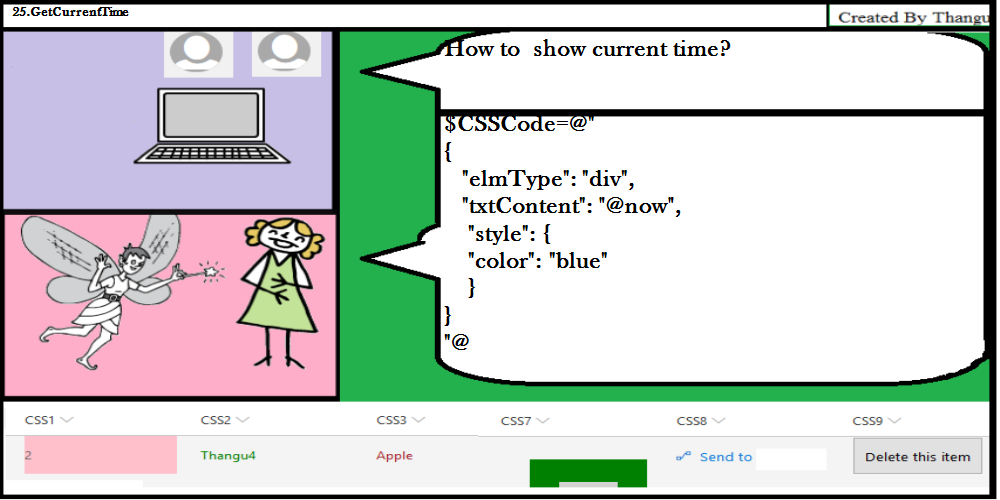
Will it not be nice to add color and many more features to the SharePoint List Data?Below is a sample of various CSS posible.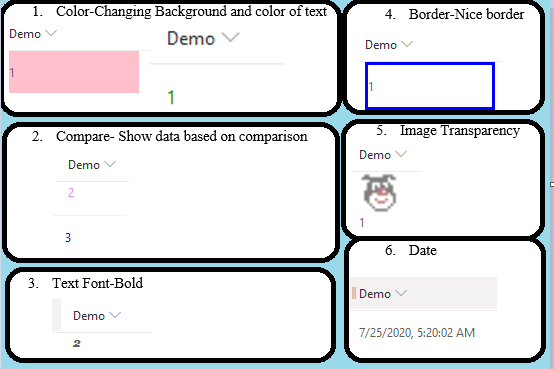
Below is a nice SVG I did that shows the icon for Love that many facebook posts use nowadays to share a support and care for your bright ideas.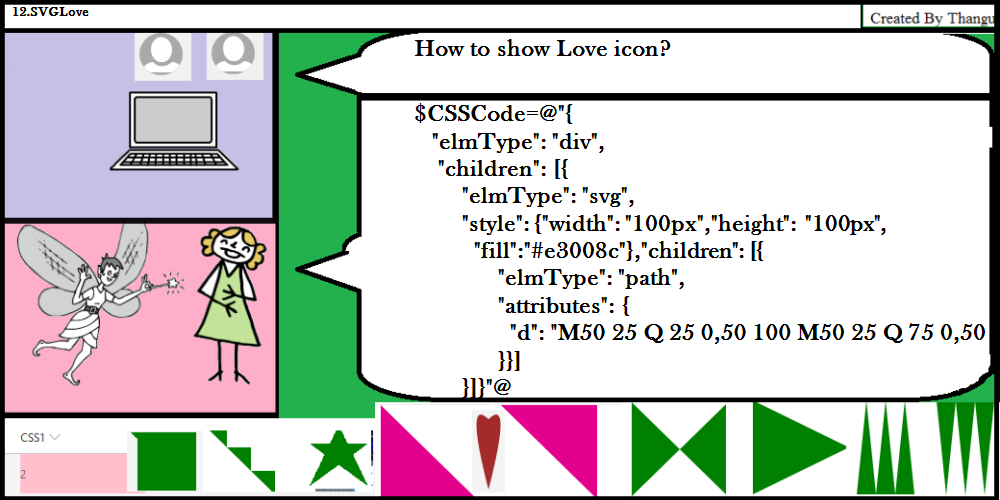
To view Top 10 CSS used for SharePoint Column Formatting, click here here
To view more details on learning to how to create simple CSS SharePoint Column Formatting Basics, click here here
To schedule free 1 hour appointment related to the drawing custom icons on your SharePoint list with your ideas, click here or email thangutinyusefultools@gmail.com.View https://www.thangu.com for various updates in apps/tools in SharePoint.
My sample video here
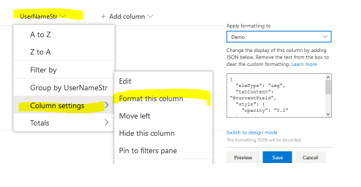
How to apply custom column formatting?
Select Column=>Column Settings=>Format this column=>Change the code=>Preview=>Save.Below is a script that shows current date.
Will it not be nice to add color and many more features to the SharePoint List Data?Below is a sample of various CSS posible.
Below is a nice SVG I did that shows the icon for Love that many facebook posts use nowadays to share a support and care for your bright ideas.
To view Top 10 CSS used for SharePoint Column Formatting, click here here
To view more details on learning to how to create simple CSS SharePoint Column Formatting Basics, click here here
To schedule free 1 hour appointment related to the drawing custom icons on your SharePoint list with your ideas, click here or email thangutinyusefultools@gmail.com.View https://www.thangu.com for various updates in apps/tools in SharePoint.
My sample video here
If you need guidance in SharePoint, join my recently created SharePoint Support group in facebook.


Comments
Post a Comment